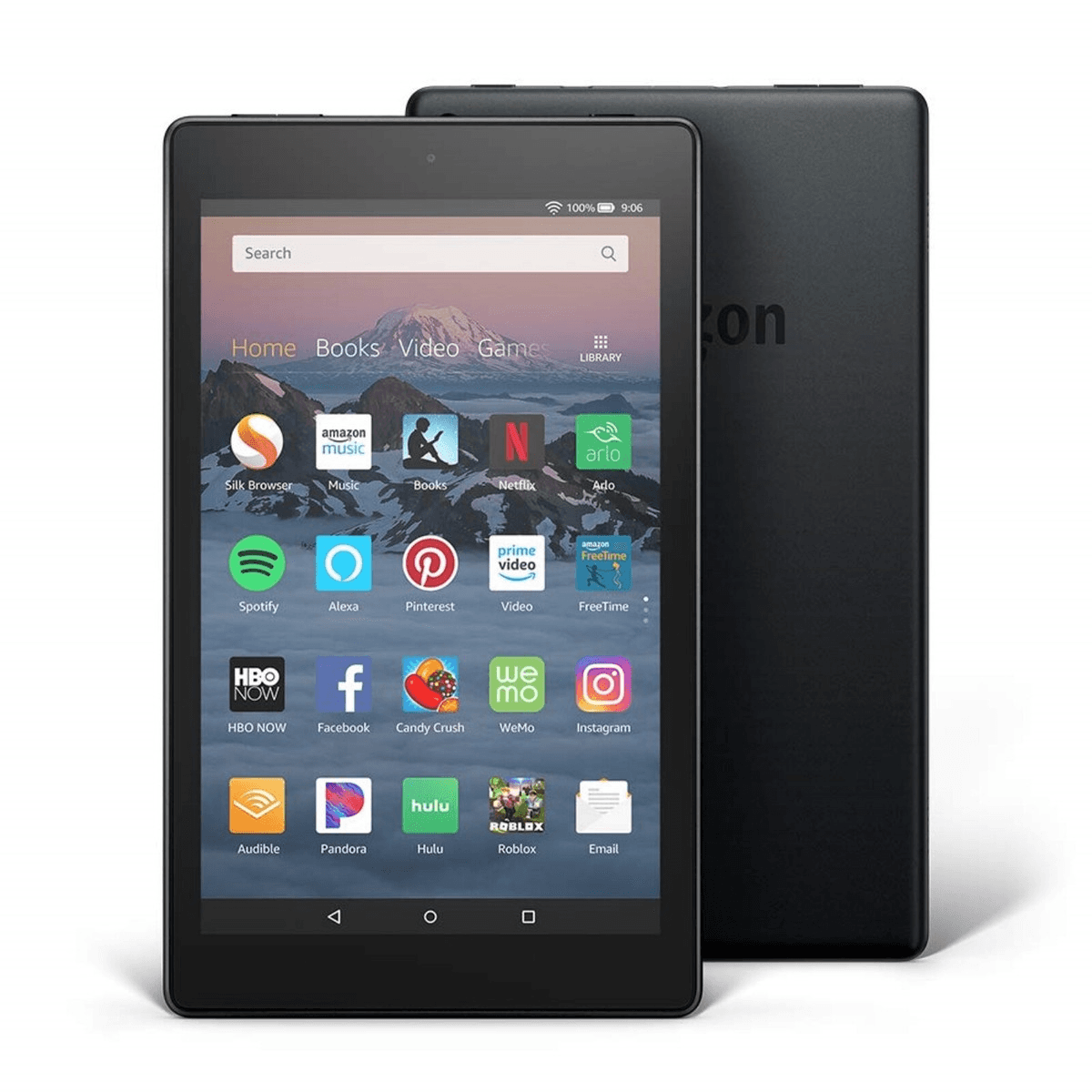
Learn How to - Setup wireless - Kindle Touch
Categories:
Type:
Free
Kindle Touch: Setting Up Your Wireless Connection
The Kindle Touch (4th Generation) remains a favorite for its simple, distraction-free reading experience. Unlike newer models that use swipe-down menus, the Kindle Touch relies on its physical Home button and on-screen Menu to get things done.
If you've recently reset your device or moved to a new network, here is the fastest way to get your library back in your hands:
Step-by-Step Wireless Setup
Go Home: Press the physical Home button at the bottom of the device to ensure you are on the main screen.
Open the Menu: Tap the Menu icon (three horizontal lines) in the top-right corner of the screen.
Enter Settings: Select Settings from the dropdown list.
View Networks: Tap on Wi-Fi Networks. Your Kindle will begin scanning for nearby signals.
Connect: Tap the name of your Wi-Fi network.
Enter Password: Use the on-screen keyboard to type your password.
Tip: Tap the 123 or Sym buttons to access numbers and special characters.
Success: Once connected, you’ll see a Wi-Fi strength icon in the top-left corner of the screen next to your Kindle's name.
Troubleshooting Tip: "Forget" a Network
If your Kindle is "Connected" but books won't download, try "forgetting" the network and reconnecting. Go to Settings > Wi-Fi Networks, tap the network you are on, and select Forget. Then, start the connection process over to refresh the handshake.

More Tools:





Load More
