CHASMS.COM
Saved Tools
Submit
Explore
Sign in
Get Agent Pro
⚙️
All Tools
📱
Android
💻
Apple - Browsers
Apple - Mac Mail
Apple - macOSX
Apple iPad - iOS
Apple iPhone - iOS
🤖
Artificial Intelligence
Break Timer
Browsers - Apple
🐧
Browsers - Linux
Browsers - Windows
Chasms Dashboards
Chat - Messaging
Chromebooks
📖
E-Readers
📩
Email - Apple
Email - Linux
Email - Other
Email - Webmail
Email - Windows
Forum
🎮
Gaming Consoles
How-To's
🛜
ISP's in Canada
ISP's in the US
📑
Job Boards
Linux
Modems
Networking - Modems
Other - Misc
Phones - Apple
Phones - Other
Phones - Samsung
🧘♂️
Productivity
🎙️
Security - Anti Virus
📺
Streaming - TV's
Tablets
📢
Testimonial
Ubuntu - OS
Ubuntu - Programs
Windows
Windows - Softwares
World Clock and Time Zones
Discover all of the Windows Simulators from XP-11
Start Using Tools
Join our newsletter
Search Tools
All
Tools:
Introducing Chaszy - The AI Agent
Chazy Ai Bot - For Agent Pro! (in testing)
Featured
Windows Browsers Chrome V141 (2025)
Microsoft Chrome V141 Emulator on Chasms.com
New
Windows Browsers Edge V147 (2026)
View Microsoft Edge V147 (2026) on Chasms.com
Windows 11 25H2 (2025)
Windows 11 25H2 Emulator on Chasms.com
Windows XP SP2
Windows XP SP2 Emulator on Chasms.com
Vintage
Windows XP
Windows XP Emulator on Chasms.com
Windows Vista
Windows Vista Emulator on Chasms.com
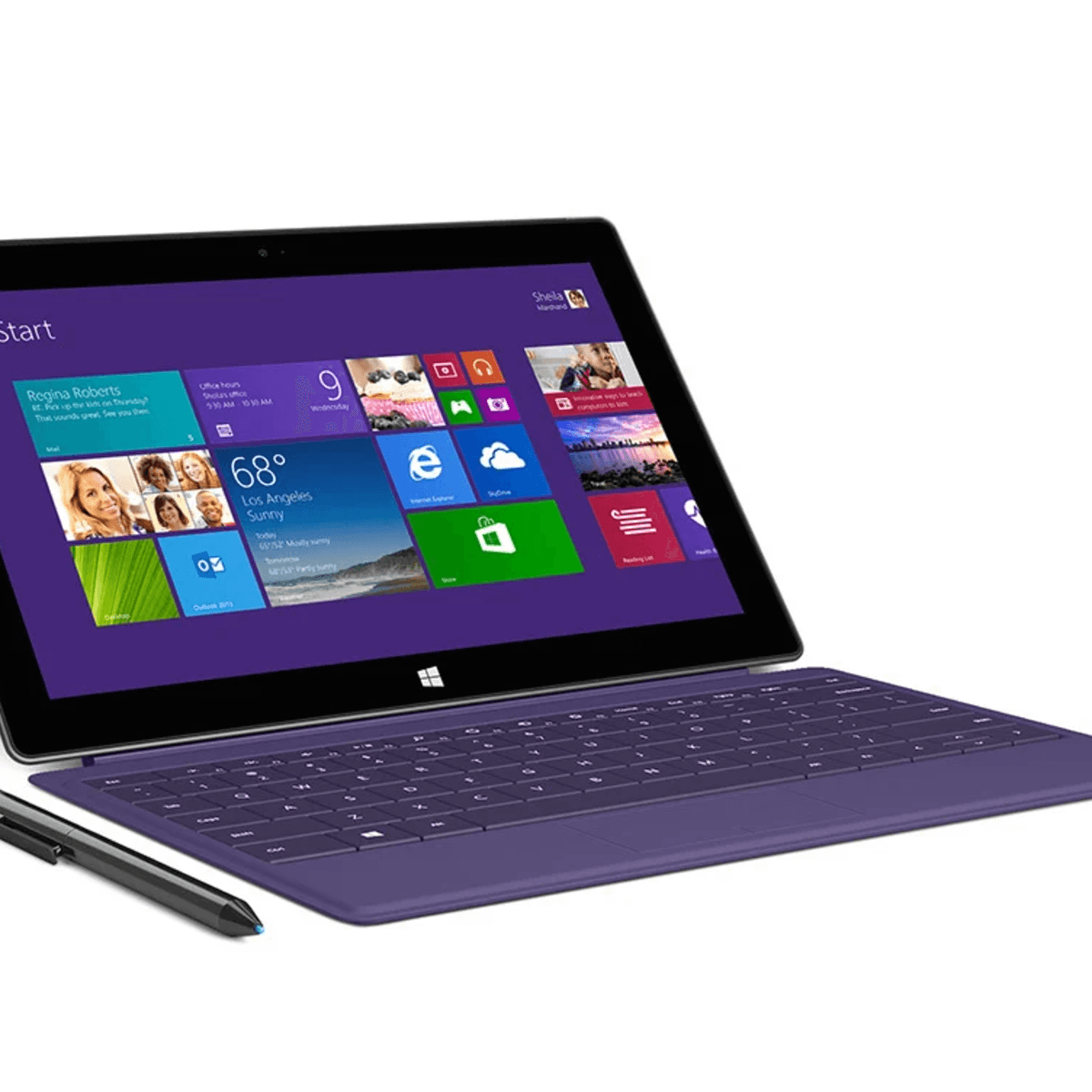
Windows Surface 2
Windows Surface 2 Emulator on Chasms.com
Windows Phone Lumia 520
Windows Phone Lumia 520 Emulator on Chasms.com
Windows 8.1
Windows 8.1 Emulator on Chasms.com
Windows 8
Windows 8 Emulator on Chasms.com
Windows 7
Windows 7 Emulator on Chasms.com
Windows 11 21H2 (2021)
Windows 11 21H2 (2021) Emulator on Chasms.com
Popular
Windows 10 Version 1903 Spring 2019
Windows 10 Version 1903 Spring on Chasms.com
Latest
Windows 10 Version 1607 (OS Build 14393.10)
Windows 10 Version 1607 (OS Build 14393.10) Emulator on Chasms.com
Windows 10 Fall Creator Update
Windows 10 Version 1709 Fall Creator update
Windows 10
Windows 10 Emulator on Chasms.com
Sign up for the Chasms.com newsletter right now – it's the cheat code to never getting screwed by tech again.
Zero-BS fixes, router hacks, email rescues, and savage screenshots delivered straight to your inbox. No login, just pure signal.